Web Monitor
Use the Cobble Flink web monitor to inspect Cobble data from a browser. It can open Flink checkpoint paths written by the Cobble state backend, and it can also open normal Cobble datasource paths such as sink output.
The monitor is read-only. It runs as a small Java process, serves the UI and API from the same port, and does not require a Flink job to read the selected snapshot.
When To Use It
The web monitor is useful when you want to:
- check which checkpoints or Cobble snapshots are available
- follow
latestwhile a job is still producing checkpoints - keep a small set of rows tracked while newer snapshots appear
- generate Flink SQL source DDL from supported non-timer Cobble state or Table schemas
- inspect Cobble state by state name, verify decoded state keys, MapState keys, ListState values, and timer entries
- inspect Cobble sink rows, primary keys, and value columns
For production reads, use the Cobble source connector or your own application code. The monitor is meant for debugging, validation, and ad-hoc inspection.
Build
Build the monitor from the repository:
./mvnw -pl cobble-flink-monitor -am package -DskipTests
The command above builds the 1.17 monitor. For checkpoints produced by newer Flink lines, select the matching module from the monitor matrix, for example:
./mvnw -pl cobble-flink-monitor-flink-2.1 -am package -DskipTests
The runnable jar is written under the selected module’s target/ directory. Source builds append -SNAPSHOT to the 0.5.3-1 release-line versions. The launch examples below use the 1.17 path; substitute your selected module’s jar path.
Start The Monitor
Start without an initial datasource:
java -jar cobble-flink-monitor/target/cobble-flink-monitor-*.jar
Then open the UI and use the Datasource page to enter a checkpoint root, concrete chk-* directory, or Cobble datasource path.
You can also pass an initial path:
java -jar cobble-flink-monitor/target/cobble-flink-monitor-*.jar \
  --checkpoint file:///path/to/checkpoints-or-cobble-table
For Flink checkpoints, both of these are valid:
java -jar cobble-flink-monitor/target/cobble-flink-monitor-*.jar \
  --checkpoint s3://bucket/path/to/checkpoints

java -jar cobble-flink-monitor/target/cobble-flink-monitor-*.jar \
  --checkpoint s3://bucket/path/to/checkpoints/chk-42
Useful options:
--bind 127.0.0.1
--port 8088
--checkpoint file:///path/to/checkpoints-or-cobble-table
--flink-conf /path/to/flink/conf
--storage-options-file /path/to/storage.properties
--storage-option storage.option.region=us-east-1
--total-buckets 32768
--inspect-default-limit 100
--inspect-max-limit 1000
--max-sessions 32
--session-idle-timeout-seconds 900
--request-body-max-bytes 1048576
--lookup-max-keys 256
--user-jar /path/to/job.jar
--user-classpath /path/to/a.jar:/path/to/b.jar
User Jars
Standard POJO, Tuple, and Avro state values usually display their fields directly without extra jars. If a custom or partially supported serializer cannot be decoded, the monitor keeps the raw bytes visible and continues scanning the remaining rows.
Add --user-jar when you need to inspect values that depend on classes from your job. This is commonly needed for custom serializers.
java -jar cobble-flink-monitor/target/cobble-flink-monitor-*.jar \
  --checkpoint file:///path/to/checkpoints \
  --user-jar /path/to/my-flink-job.jar
--user-jar is repeatable. It also accepts a directory containing jars. For an existing classpath string, use --user-classpath:
java -jar cobble-flink-monitor/target/cobble-flink-monitor-*.jar \
  --checkpoint file:///path/to/checkpoints \
  --user-jar /path/to/job.jar \
  --user-jar /path/to/deps/ \
  --user-classpath /path/to/a.jar:/path/to/b.jar
A custom serializer may need both the job jar and its dependency jars.
Only load jars from trusted sources. The monitor may load classes from them while reading state.
Remote Storage
Set --checkpoint to the remote datasource URI. Pass --flink-conf when the cluster already contains the required storage configuration. Additional access options can be placed in a Java properties file. Every key below storage.option. is forwarded unchanged to the provider selected by the URI:
storage.option.endpoint=http://127.0.0.1:9000
storage.option.access_key_id=<access-key>
storage.option.secret_access_key=<secret-key>
storage.option.enable_virtual_host_style=false
storage.option.region=us-east-1
java -jar cobble-flink-monitor/target/cobble-flink-monitor-*.jar \
  --flink-conf "$FLINK_HOME/conf" \
  --storage-options-file /path/to/storage.properties \
  --storage-option storage.option.region=us-east-1 \
  --checkpoint s3://bucket/path/to/table
--storage-option KEY=VALUE is repeatable, overrides file values, and uses the last CLI value. These settings apply to the initial path and to datasource paths opened later in the UI. Provider keys are arbitrary and may contain dots. For another filesystem, use the keys required by its provider. These options apply to both Cobble tables and Flink checkpoints. Settings from --flink-conf provide defaults; explicit storage options override them. Supply credentials through deployment templates or secret management.
Flink configuration is process-wide: loading --flink-conf replaces the defaults for subsequent filesystem opens. Run separate processes when different monitors need isolated configurations.
Datasource Page
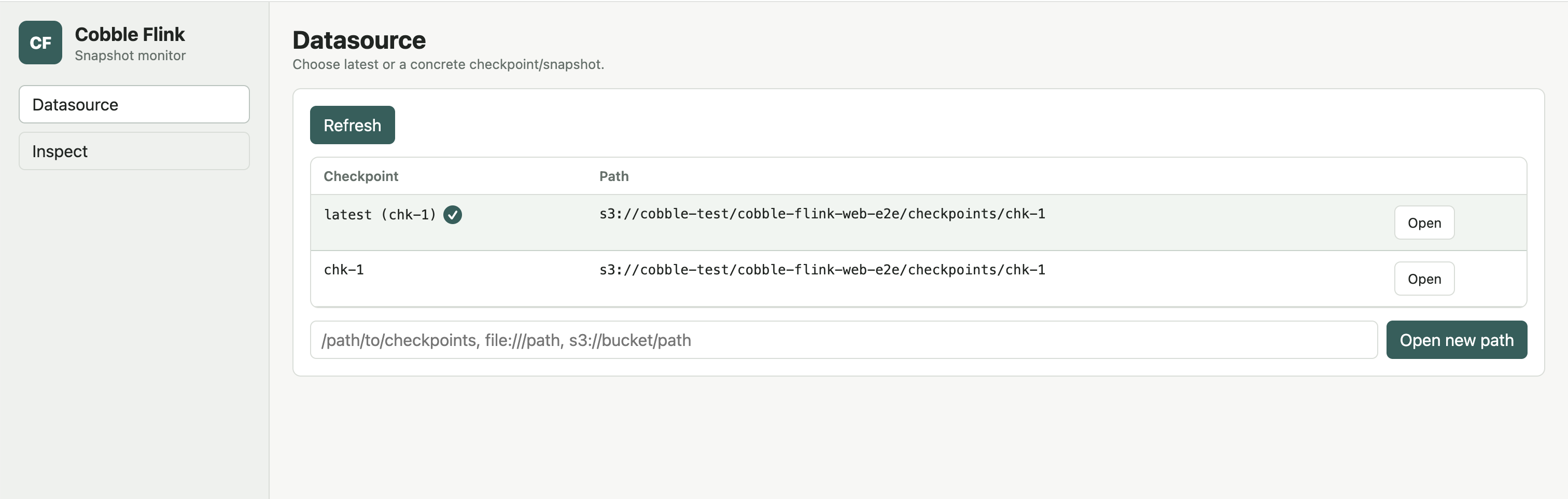
The Datasource page shows the snapshots available under the current path.
For a Flink checkpoint root, the monitor scans chk-* directories, discovers Cobble operators, and lets you choose:
latest, which follows the newest readable checkpoint- a concrete checkpoint
- an operator, shown on the
Inspectpage for checkpoint datasources
For a normal Cobble datasource, the monitor scans snapshot/SNAPSHOT-* and lets you choose:
latest, which follows the newest Cobble snapshot- a concrete snapshot
Use Refresh to rescan the path. If old checkpoints have been removed, they are removed from the list on refresh.
Overview Page
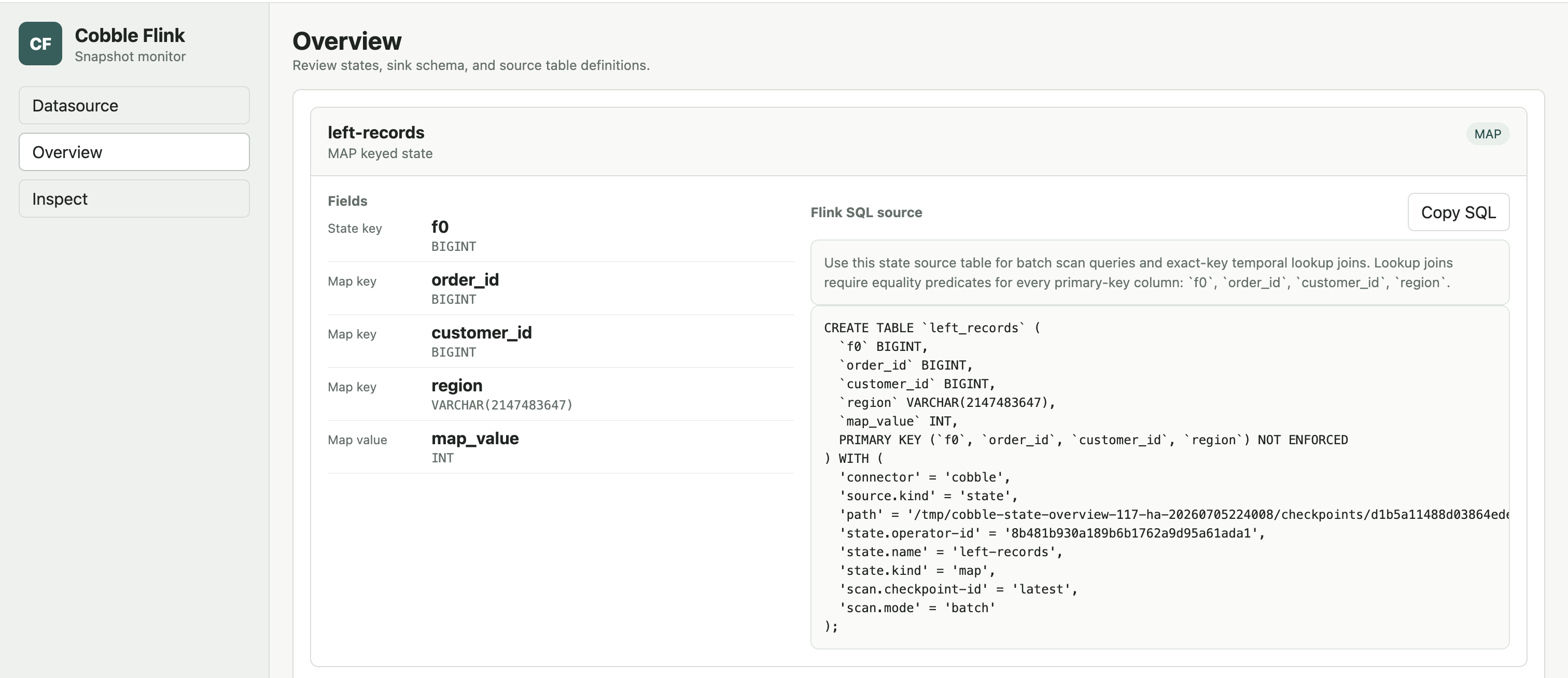
The Overview page shows the states or Cobble Table schema in the selected datasource. It generates Flink SQL CREATE TABLE DDL for supported non-timer states and Cobble Tables.
For checkpoint datasources, each state card shows the decoded key, namespace, MapState key, and value fields. Generated state DDL uses source.kind = 'state' and includes a PRIMARY KEY when the state can be used as a lookup table. Timer entries are available in State Inspect, but do not have SQL source DDL. For sink datasources, the page generates the matching source.kind = 'sink' DDL.
Use Copy SQL to copy a table definition into a SQL client or job.
Inspect Datasources
After selecting a datasource, open Inspect and choose the matching guide:
- State Inspect: inspect schema-aware ValueState, ListState, MapState, ReducingState, AggregatingState, and timer state from a Flink checkpoint.
- Sink Inspect: inspect a Cobble sink snapshot by primary key and typed value columns.
Both pages use Scan to browse rows and Track to keep selected rows visible while a snapshot changes. The monitor never writes to the datasource.
Programmatic Access
Use the HTTP API to integrate with another process, or the Java Inspect SDK to embed inspection directly in a Java application. Both expose the same discovery, pinned Overview, scan, exact lookup, decoded values, and row-level decode issues as the browser UI.
The HTTP API uses independent sessions, so multiple clients can inspect different paths and checkpoints without changing each other’s selection. The server is unauthenticated and binds to loopback by default.
Notes
- The monitor never writes to the selected datasource.
- Each open session pins
latestto a concrete id. Refresh follows newer checkpoints or snapshots while preserving tracked rows. An expired session can be reopened at the same id; exact selections never switch to a newer id. - Checkpoint datasources support operator discovery.
- Cobble Tables include their schema. Flink state inspection uses schema metadata from the checkpoint; explicit raw inspection remains available for byte-oriented Cobble data.