State Inspect
Use state inspect to validate the contents of a Cobble state backend checkpoint without restoring or changing the Flink job.
Open A Checkpoint
On the Datasource page, open a checkpoint root or a concrete chk-* directory. Choose latest to follow the newest readable checkpoint, or choose a concrete checkpoint when you need a stable view.
The Inspect page then lets you choose the operator and the state name. State names are shown instead of Cobble column families.
Scan State
Use Scan to browse rows. When schema metadata is available, the monitor shows the state key and relevant state parts in their decoded form.
For a known serializer, enter a state key in its normal display form. For example, enter a string directly for a string key, or a decimal number for an integer key. When a namespace is meaningful, it appears as a separate filter.
SQL State
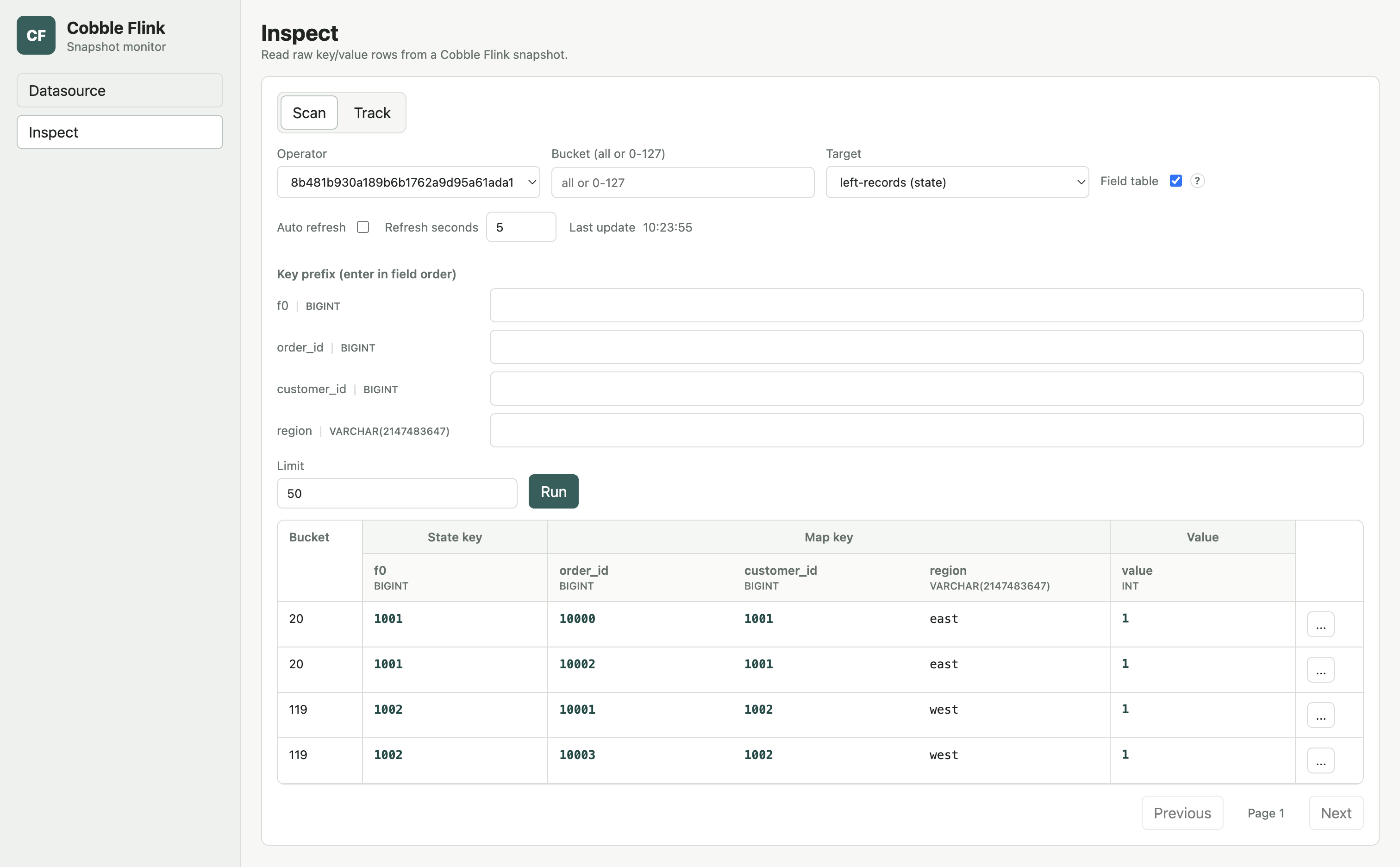
When you inspect a checkpoint from a SQL job, leave Field table enabled. The monitor then expands the state key, map key, and value into the columns you use to reason about the job, instead of asking you to read a serialized byte key.
Filter By Key Fields
Use Key prefix to narrow the rows before you scan. The fields are ordered as they appear in the stored key: state-key fields first, then namespace and map key fields when the state has them. Fill them from left to right.
Every field before the last supplied field is an exact match. The last supplied field is a prefix match, which is useful when you only know the beginning of a string key. You cannot skip a field: if you type a later field first, the monitor highlights the missing input and tells you what to enter.
The example below filters a join state by its join key and then shows the state key, map key, and value as separate table columns.
Read The Result
The result table keeps the same groups used by the filter. This makes it easy to compare a key you entered with the rows returned by the checkpoint. The Track tab keeps this field-based presentation while you refresh rows or move to a newer checkpoint.
Standard POJO, Tuple, and Avro state values usually render as field tables without --user-jar.
For streaming and temporal joins, deduplicate, process-time sort, and many TopN states, the monitor can usually show the SQL column names. Aggregation, Over, and window states may show typed columns as f0, f1, and later ordinal names instead. This happens when Flink has already discarded the original SQL aliases; the values and their types remain available.
Interval join cache entries are shown as their nested list and tuple values. When a custom or partially supported serializer cannot be decoded, the monitor keeps the raw bytes visible and continues scanning. Add trusted job jars and their dependencies with --user-jar when you need those fields decoded; see User Jars.
Disable Field table when you need the original serializer-oriented key filters and raw row presentation. Cobble state inspect covers ValueState, ListState, MapState, ReducingState, and AggregatingState.
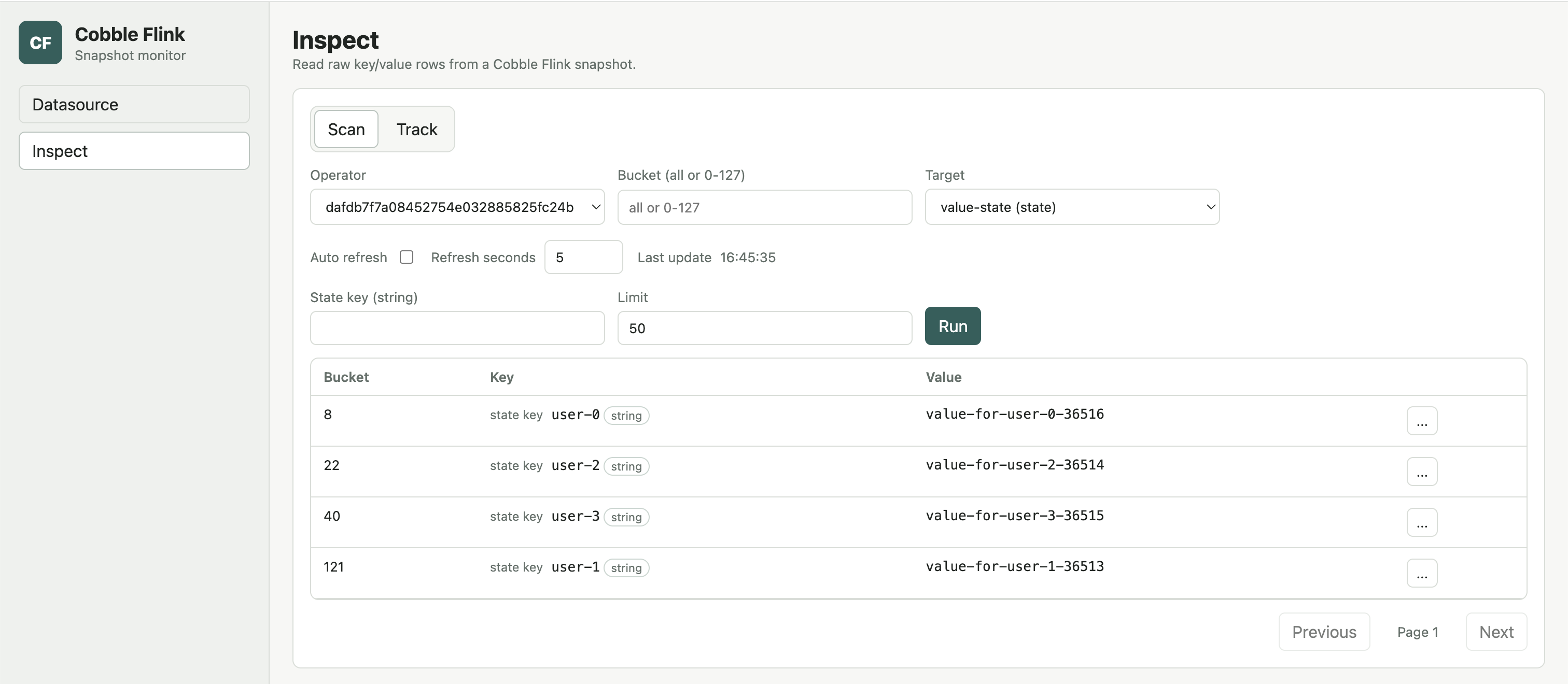
ValueState
ValueState shows the decoded state key, namespace when it carries user data, and the decoded value.
ListState
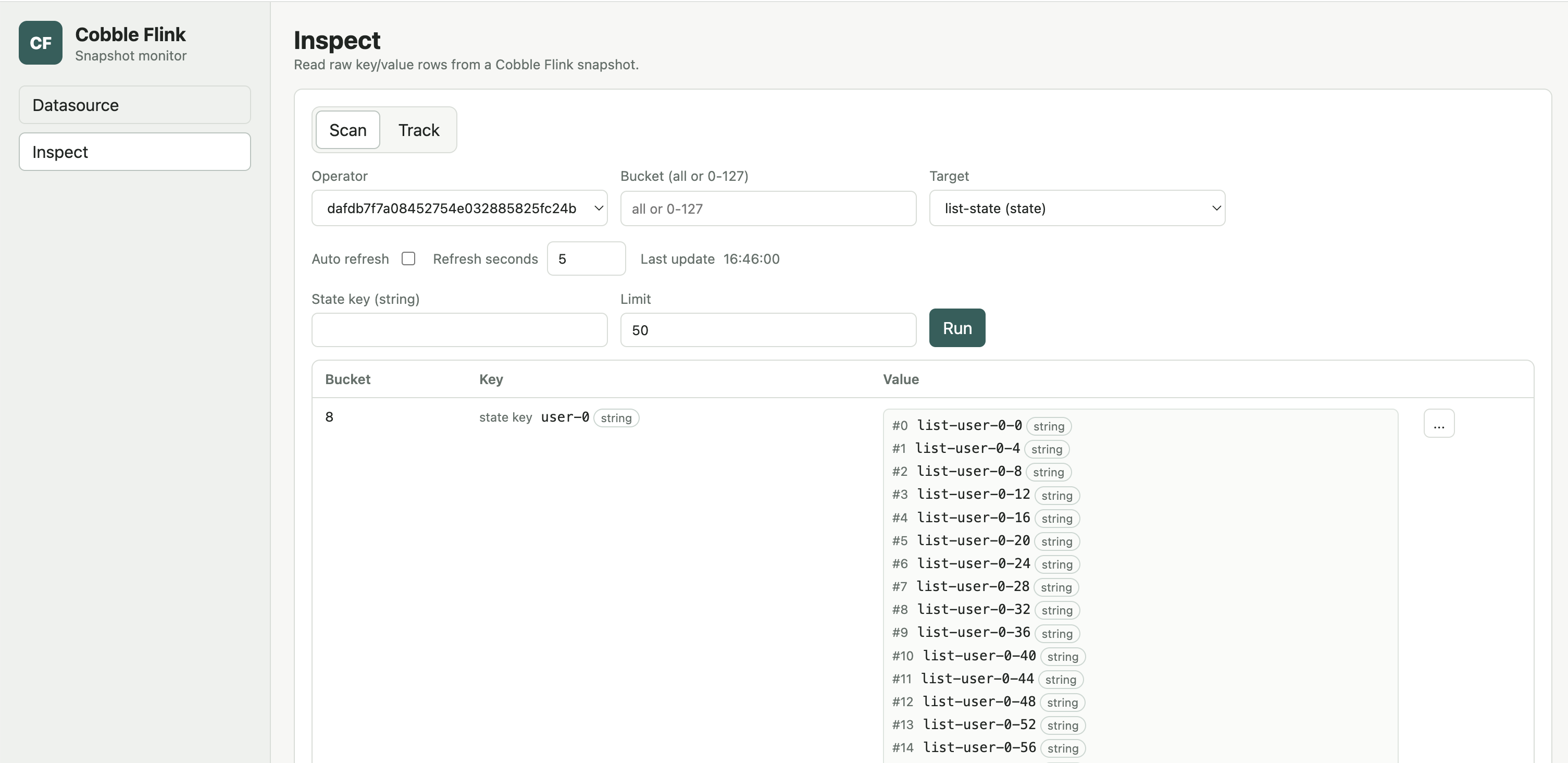
ListState shows the decoded state key and list elements. Large lists show the first 100 elements; use the in-page control to reveal the next 100.
MapState
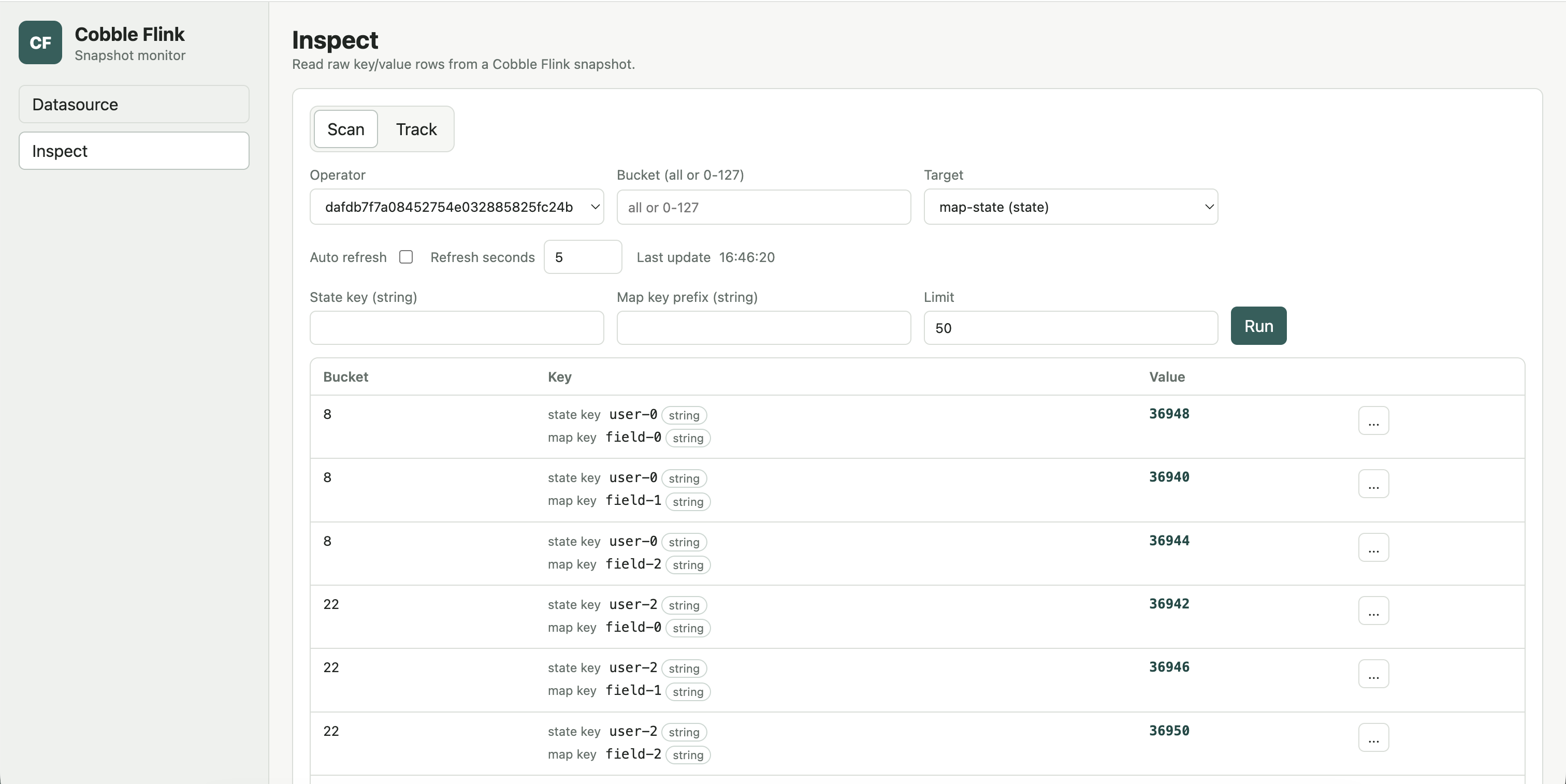
MapState shows the state key, map key, and map value separately. Use the state key to narrow to one keyed state, then optionally provide a map-key prefix to filter entries inside it. VoidNamespace is omitted because it does not carry user data.
Timer State
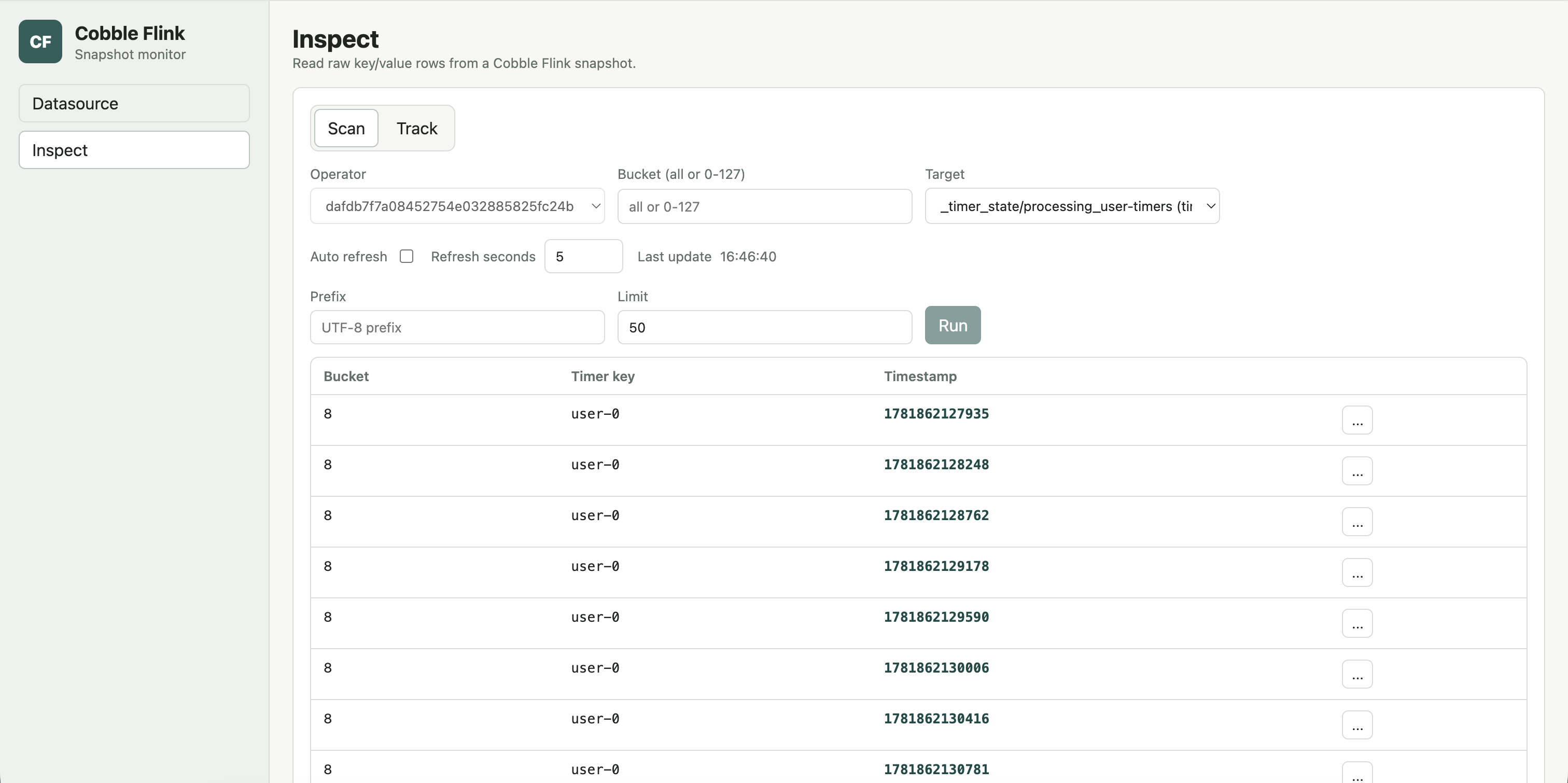
Timer targets always display the timestamp as its own column rather than a value column. When the job supplies SQL field metadata and Field table is enabled, the timer key and namespace expand into typed fields too. This makes it possible to see which window and key a pending timer belongs to without decoding raw bytes by hand.
The timestamp remains visible when the monitor cannot decode the timer key or namespace. To show those fields, provide trusted job jars and dependencies with --user-jar; the matching key and namespace serializers must be available.
Use Key prefix to narrow the timer list. Enter fields from left to right; every field before the last must be complete, while the final supplied field can be a prefix. When metadata is unavailable, the monitor keeps the decoded timer-key fallback so existing timer inspection continues to work.
Track Rows
Choose Track from a scan row’s action menu to retain it in the Track tab. Refresh tracked rows together while you move between snapshots or follow latest.